MCP servers got a new client: MCP CLI
Introduction
Developers have always loved using CLIs, and CLI is a hot topic again—coding agents, OpenClaw CLI, and now CLI has made its way into MCP.
It’s been more than a year since MCP was introduced, and the industry has widely adopted it. This adoption has also led to a few improvements in MCP.
These changes don’t shake MCP’s core principle. The core idea is still the standardization it brings for integrating agents (agent applications) with tools—reducing M×N integrations down to M+N. The recent improvements around MCP are mainly about making it more efficient. MCP CLI is one such addition.
Traditional MCP
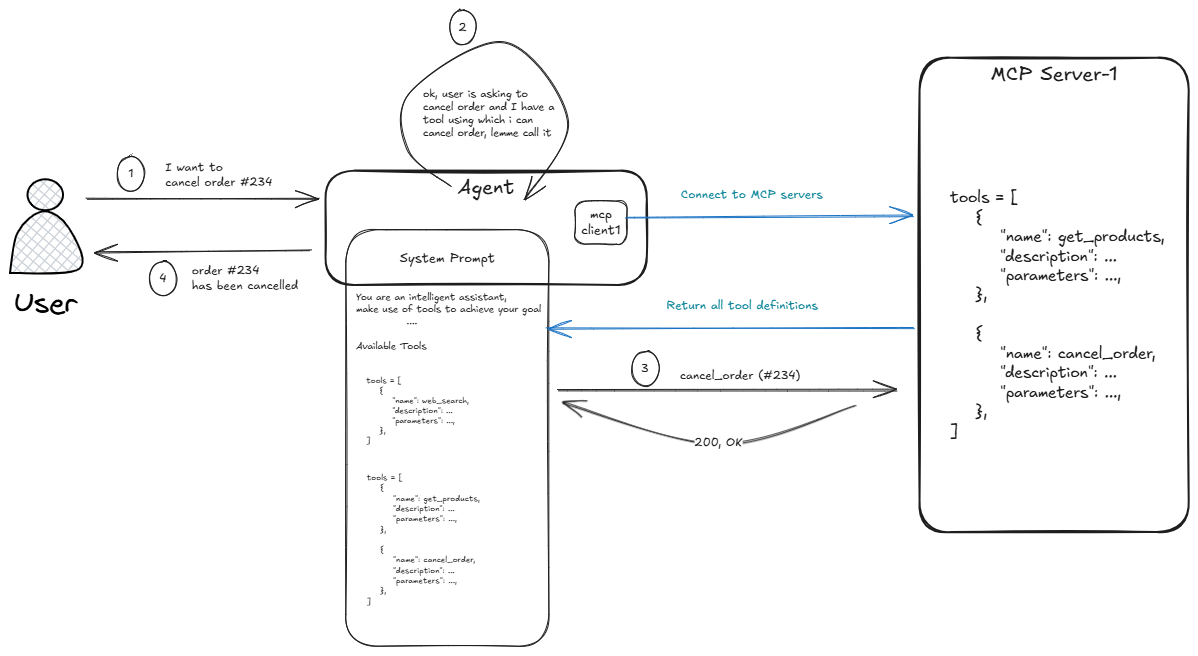
In the traditional approach, when the application starts, the MCP client connects to the MCP server, fetches all available tools, and loads them into the system prompt.
The problem is that the system prompt can grow significantly depending on:
- how many MCP servers you connect to, and
- how many tools each server exposes.
A bloated system prompt can dilute the important instructions that are also part of the system prompt.
MCP CLI
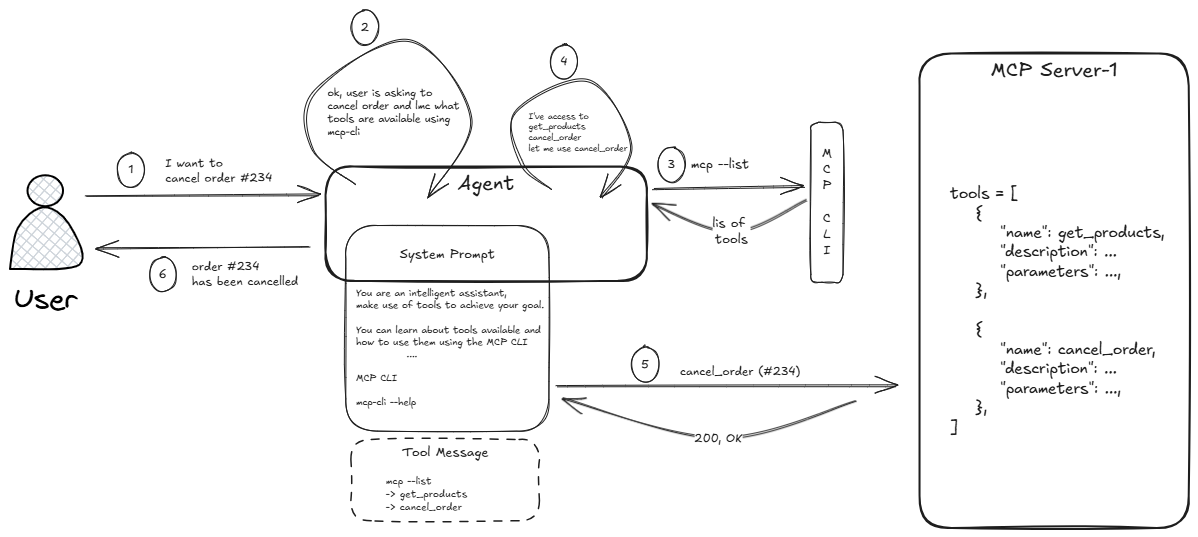
With the CLI approach, instead of loading all tools into the system prompt upfront, we give the agent access to a CLI. This CLI knows:
- what tools each MCP server has, and
- the details needed to connect and invoke those tools.
LLMs are good at using commands and CLI-style tools to perform tasks. We take advantage of that by giving the LLM a CLI that’s designed like a typical Linux CLI tool, so the model can operate it naturally.
Here, the agent progressively discovers the required tool using the CLI only when it’s needed—instead of always keeping every tool in memory.
This progressive-discovery behavior aligns with the principle of Agent Skills as well.
One thing to note: the number of steps may increase (for example, from 4 to 6), and we also don’t get as much benefit from prompt caching since tools are discovered dynamically.
That said, the number of steps won’t always be greater than the traditional flow.
In the above example, inside the dotted box we see:
mcp --list
→get_products
→cancel_order
This gets added as tool output and becomes part of the context sent to the LLM. Now, if the user asks again to fetch products, the LLM can notice that get_products is already present in the message history and may choose not to call mcp-cli again—depending on your context engineering strategy and how long you keep tool outputs in context.
Conclusion
Notice that the MCP server isn’t changed at all—we’re just introducing a new way to interact with it. In that sense, MCP CLI is best described as an alternative MCP client implementation.
Demo
There are already several MCP CLIs available; for this demo, I’ll use the FastMCP CLI.
The FastMCP CLI is installed as part of the fastmcp package:
1
uv add fastmcp
We’ll use the Excalidraw MCP server
List available tools:
1
fastmcp list https://mcp.excalidraw.com --auth none
Output:
1
2
3
4
5
6
7
8
9
10
11
12
13
14
15
16
17
18
19
Tools (5)

  read_me()
    Returns the Excalidraw element format reference with color palettes, examples, and tips. Call this BEFORE using create_view for the first
time.

  create_view(elements: str)
    Renders a hand-drawn diagram using Excalidraw elements.
Elements stream in one by one with draw-on animations.
Call read_me first to learn the element format.

  export_to_excalidraw(json: str)
    Upload diagram to excalidraw.com and return shareable URL.

  save_checkpoint(id: str, data: str)
    Update checkpoint with user-edited state.

  read_checkpoint(id: str)
    Read checkpoint state for restore.
Invoke a specific tool () - Create a simple rectangle diagram:
1
fastmcp call https://mcp.excalidraw.com --auth none create_view elements='[{"type":"rectangle","id":"r1","x":100,"y":100,"width":200,"height":100}]'
Output:
1
2
3
{
  "checkpointId": "5a0a1d4326cc4535af"
}
Read the checkpoint to get the current state of the diagram:
1
fastmcp call https://mcp.excalidraw.com --auth none read_checkpoint id='5a0a1d4326cc4535af'
Output:
1
{"elements":[{"type":"rectangle","id":"r1","x":100,"y":100,"width":200,"height":100}]}
Export to excalidraw and get a shareable link:
1
fastmcp call https://mcp.excalidraw.com --auth none export_to_excalidraw json='{"elements":[{"type":"rectangle","id":"r1","x":100,"y":100,"width":200,"height":100}]}'
Output:
1
2
3
{
  "url": "https://excalidraw.com/#json=krPigtGKqzXUJSRCTUcpw,TvJ6IWAJdLFlIiipu1xE5g"
}
Opening the link generated by the final command should take you to Excalidraw with a rectangle already drawn.
The sequence of commands above is essentially how an agent would use the CLI to complete the task, discovering the right tool and invoking it step by step.